
How to Create an Offline Travel Itinerary Backup for a Solo Camping Trip
Create an offline itinerary backup for solo camping. Learn to download maps, export AI plans, and store data for reliable no-signal navigation.
In this guide
- Why Offline Backups Matter for Solo Camping
- What to Include in Your Offline Backup
- Tools for Creating and Exporting an AI Travel Itinerary
- Downloading Offline Maps for Navigation
- Storing Your Backup Across Multiple Formats
- Testing Your Offline Backup Before Departure
- Common Pitfalls to Avoid
- Frequently Asked Questions
- Conclusion
Why Offline Backups Matter for Solo Camping
When you are miles from the nearest cell tower, your carefully planned solo camping itinerary is only as good as your ability to access it. Cellular networks often do not cover national parks, wilderness areas, or backcountry campsites. In those conditions, relying on an internet connection to pull up directions, reservation confirmations, or emergency contacts can leave you stranded without a plan.

An offline backup ensures you can reference routes, campsite coordinates, permits, packing lists, and emergency numbers even when your phone shows “No Service.” It also conserves device battery, because you will not waste power searching for a signal. And it provides redundancy against device failure, loss, or theft. The peace of mind that comes from knowing your itinerary is always accessible is invaluable for a solo traveler.
The process is straightforward: export your plan from an AI travel planner, download offline maps for your camping area, store copies in multiple places, and test everything before you leave. This guide covers each step.
What to Include in Your Offline Backup
A comprehensive offline backup for a solo camping trip should hold all the information you might need without an internet connection. At minimum, include:
- Your day-by-day schedule, including driving directions, trailheads, campsite coordinates, and estimated driving times. Use consistent coordinate formats (decimal degrees or UTM) that match your chosen navigation app.
- Copies of reservation confirmations, permits, and park entry tickets. Most are issued as PDFs with no copy restrictions. Verify specific park requirements if electronic copies are acceptable.
- Emergency contact numbers: local ranger stations, the nearest hospital, and a trusted friend or family member at home.
- Your packing list, gear notes, and any specific instructions for the trip (e.g., water sources, bear canister requirements).
- Offline map tiles or downloaded areas for your navigation app.
Avoid including unnecessary details that might clutter the backup. Prioritize critical information. If your itinerary contains sensitive data like home address or credit card numbers, consider storing it in an encrypted notes app or leaving it off the backup entirely.
Tools for Creating and Exporting an AI Travel Itinerary
Many solo campers now use AI travel planners to generate itineraries. Popular tools include TripIt, Wanderlog, and custom GPT applications designed for trip planning. As of early 2025, most of these tools offer export features that produce an offline-friendly format: PDF, plain text, or an emailed summary.
If your AI planner has an export button, use it. Save the file as a PDF or copy the plain text into a notes app. For apps without direct export, take screenshots of each day of the itinerary and combine them into a PDF using your phone’s photo-to-PDF feature, or manually copy the text into an offline-capable notes app such as Apple Notes, Google Keep, or Evernote.
A word of caution: AI tools require an internet connection to generate the itinerary. Plan to create and export your plan while you are still online. After export, verify that the file includes all critical details—addresses, confirmation numbers, and any special instructions. If the app’s export omits certain sections, copy those manually.
Downloading Offline Maps for Navigation
Offline maps are the backbone of navigation in areas without cell service. Several apps allow you to pre-download map tiles for use without data.
Google Maps remains a common choice for driving and basic walking trails. To download an area, search for your camping region, tap the menu (three horizontal lines), select “Download offline map,” and adjust the rectangle to cover your entire route plus a buffer for detours. Note that Google Maps offline maps expire after 30 days unless you connect to the internet to refresh them. Before departure, check the expiration date and re-download if necessary.
Maps.me offers offline maps for entire countries or regions. The maps are permanent until you delete them manually, making them reliable for extended trips. Download the country or region containing your campsites. Because Maps.me does not auto-expire, you only need to update the map if new roads or trails are added.
Gaia GPS is a dedicated hiking and backcountry navigation tool that supports offline topographic maps. The free version has limited offline options; a subscription is typically needed to download premium topo layers. Verify your subscription level before relying on Gaia GPS offline.
Whichever app you choose, ensure the downloaded area covers all planned routes and includes a buffer for unplanned detours. Large map downloads consume significant storage, so check your device’s available space beforehand. Offline maps cannot provide real-time traffic or dynamic updates, but GPS satellites still position you accurately without internet.
Storing Your Backup Across Multiple Formats
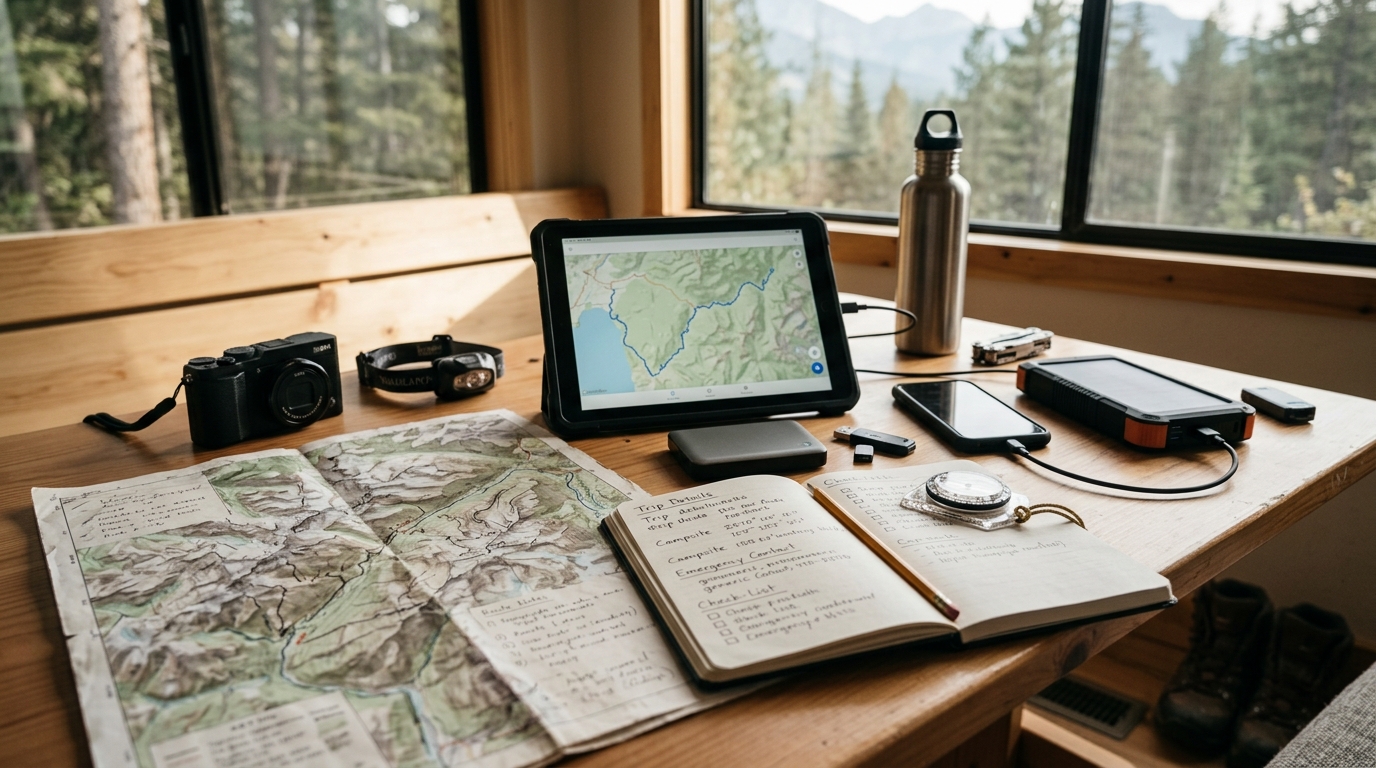
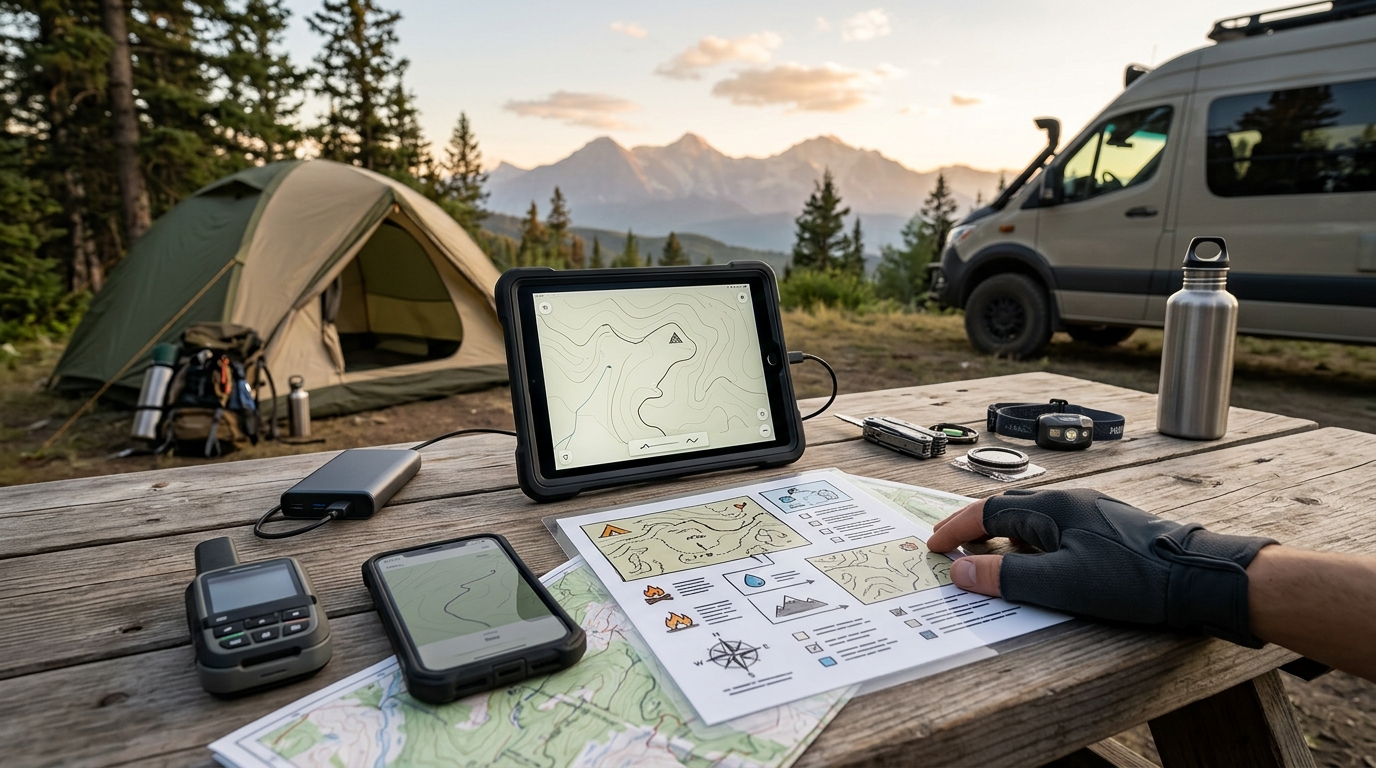
Redundancy is key. Do not rely on a single copy stored on your phone. Follow a three-pronged approach: digital on multiple devices, cloud with offline sync, and a physical paper backup.
Digital on multiple devices: Save the exported itinerary file locally on your phone (in the Files app, iBooks, or a dedicated folder). Also save a copy on at least one other device: a tablet, a secondary phone, or a laptop if you will have access to it.
Cloud with offline sync: Upload the file to a cloud storage service such as Dropbox, Google Drive, or iCloud. Enable offline sync or manually download the file to your device for offline access. Be aware that cloud sync requires an initial internet connection; after syncing, the file is cached locally only if you explicitly set it to be available offline.
Paper backup: Print a physical copy of your itinerary and place it in a waterproof bag or use waterproof synthetic paper. If you are camping near your vehicle, also store a USB drive with the itinerary and map files. Paper can get wet, so ensure it is protected.
Testing Your Offline Backup Before Departure
A backup that you cannot actually open offline is useless. Test everything while you still have internet access to fix problems.
Put your device in airplane mode to simulate no signal. Open the itinerary file (PDF, text, or notes app) and confirm all details are visible and legible. Launch your offline map app and try navigating to a point within the downloaded area. Verify that map tiles load and the app responds as expected. If you are using multiple devices, test each one.
If you are using Google Maps, check the expiration date on the offline map. If it will expire during your trip, re-download it before leaving data coverage. If you make any changes to your itinerary after testing, repeat the test.
Common Pitfalls to Avoid
- Relying solely on one method. Without redundancy, a single device failure can leave you without your itinerary.
- Forgetting to download offline maps before leaving signal range. Downloading requires a stable internet connection; do it at home.
- Assuming cloud sync means files are available offline. Always explicitly download or enable offline sync for cloud-stored files.
- Using incompatible file formats. Make sure your phone can open the file format you choose (PDF is nearly universal).
- Overlooking device battery. Offline maps and note apps still drain battery. Charge all devices fully and pack a portable power bank.
Frequently Asked Questions
Can I use Google Maps offline for hiking in remote areas? Google Maps offline works for driving and basic walking trails, but for hiking on unmarked paths, dedicated hiking apps like Gaia GPS or AllTrails with offline topo downloads are more reliable. Always check coverage for your specific trails before relying on any single app.
How do I back up an AI-generated itinerary if the app doesn’t have an export function? Take screenshots of each day of the itinerary and save them as a PDF using your phone’s photo-to-PDF feature, or manually copy the text into a notes app that supports offline access, such as Apple Notes, Google Keep, or Evernote. All of these apps allow full offline notebooks on current versions of their operating systems.
Conclusion
Creating an offline backup of your solo camping itinerary is a straightforward process: export your plan, download maps, and store copies in multiple places. By testing your backup before you leave and updating it as needed, you ensure that your itinerary, routes, and emergency information are always accessible—even when your phone says “No Service.” A few minutes of preparation can save hours of frustration in the backcountry.
Disclaimer: The availability, features, and offline capabilities of apps mentioned may change over time. Always verify the latest functionality of any tools you plan to use. Backups are the user’s responsibility; the author assumes no liability for lost data or reliance on this guide.

The conversation